
In this second post, I will cover some of the more detailed configurations within OBS Studio, including how I set up the Camera feed from the Ubiquiti camera, the weather overlay, and some tips for reliability using Advanced Scene Switcher. Check out the stream HERE!
Computer & Operating System
OBS Studio can run on Windows, Mac, and Linux. I used an older computer that I had lying around, a Lenovo ThinkCentre M93P, with an i5 processor and 8 GB of RAM. I installed Ubuntu 24.03 from a flash drive following the standard install.
After installing Ubuntu, I followed the instructions on the OBS Project website to install OBS Studio
sudo add-apt-repository ppa:obsproject/obs-studio
sudo apt update
sudo apt install obs-studio
OBS Studio Configuration
Launch OBS Studio and connect your YouTube account. Next, you will need to add your camera as a media source.
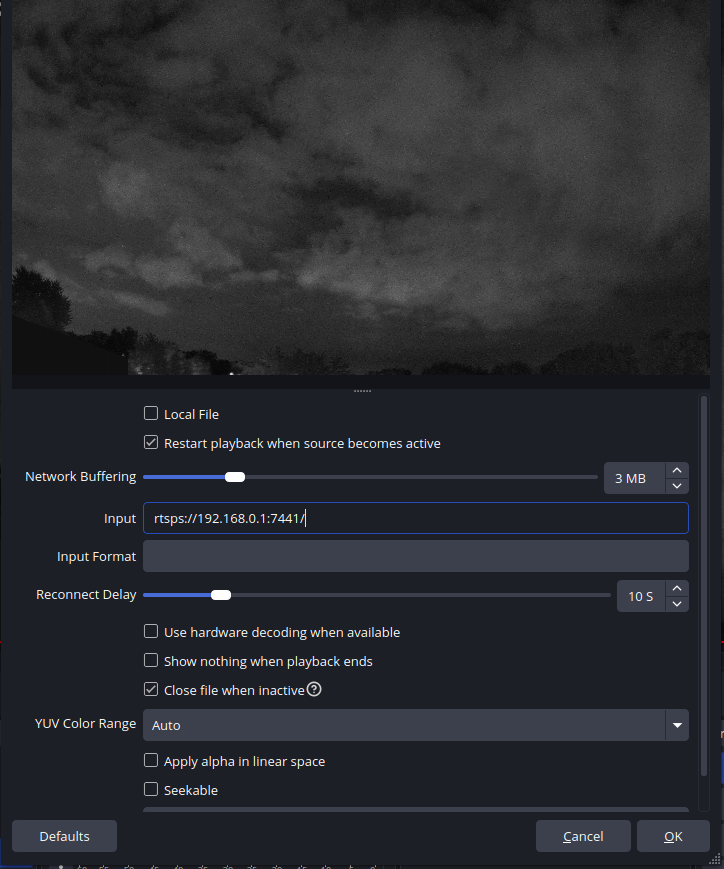
Below is a screenshot of the setup for the Weather Camera. Start by adding a media source. In the Input box, add the full URL for your RTSP or RTSPS stream (this comes from your camera or NVR). For reliability, check the ‘Restart playback when source becomes active’ and ‘Close file when inactive’. These two settings will attempt to reconnect to your RTSP stream if an issue occurs.
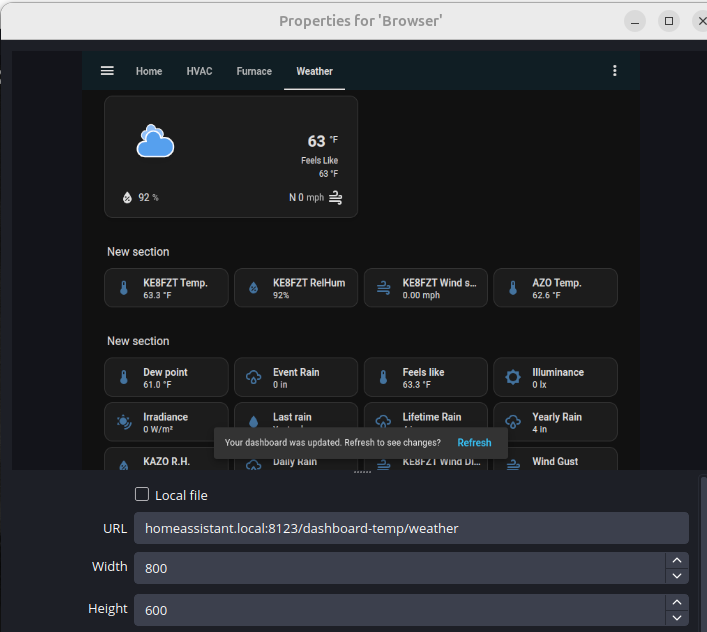
Next, I added an overlay of weather information to my stream. To do this, I added another source and chose Browser. I entered the URL for the dashboard in my Home Assistant software. I then resized the window and moved it to the corner.
Now, you can start your broadcast!
Reliability
Over time, even though we checked the settings to reconnect our RTSP media source in the above section, the stream seems to freeze in testing. Opening and re-saving the media source would always restart the stream; however, it would freeze again between 2 hours and 2 days. The settings above to reconnect only worked sometimes.
To resolve this issue, I used a tool called Advanced Scene Switcher. This tool allows you to create macros that run based on certain conditions. Below, I will walk through creating a macro to detect when the stream has frozen and restart it.
First, install the plugin following these instructions: https://github.com/WarmUpTill/SceneSwitcher
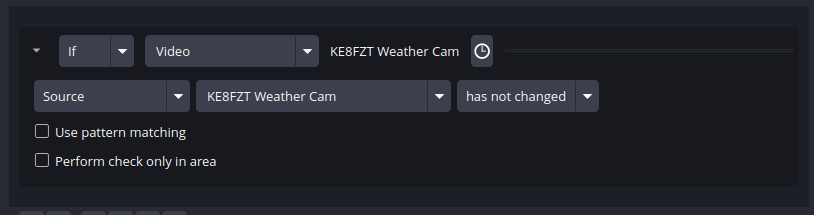
Next, Launch Advanced Scene Switcher from the Tools menu in OBS. Click the + to create a new macro. The screenshot below is set up to detect when the stream has frozen. In the “define macro conditions” area, set up the conditions like the screenshot below:
In the lower half of the screen, where we “define macro actions”, I have set up 3 actions. The first action stops the source of the camera. The section action pauses for 2 seconds. The final section then restarts the source.
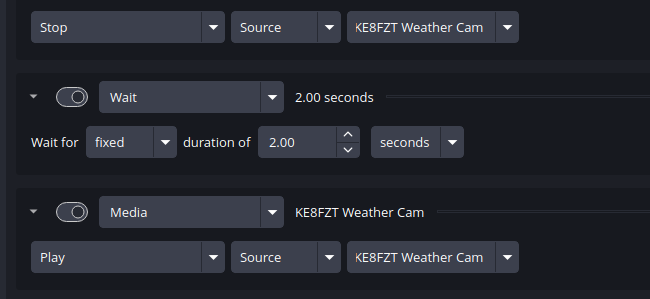
The fully completed macro looks like this:
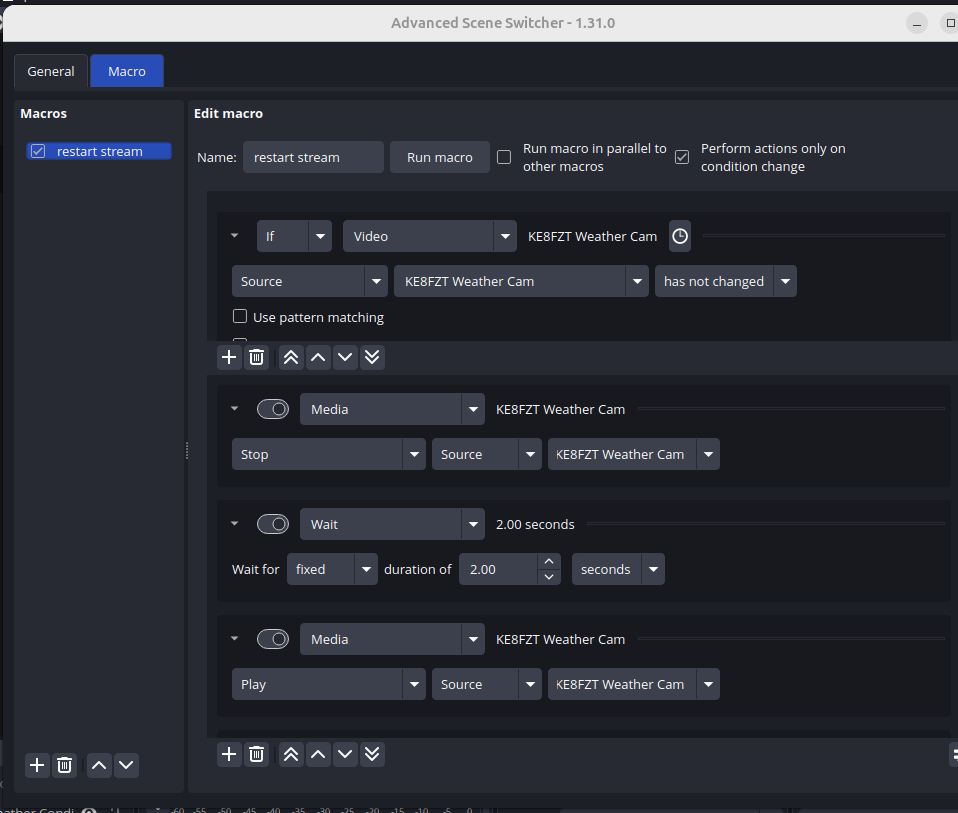
Make sure the macro is enabled! When OBS detects a freeze in the RTSP stream, there will be a brief 2-second pause, and then the stream should restart. As of this post, my stream has been reliable for over 1000 hours!
500 hours